
EnJaSwitcher
macOS Input Source Switcher (Eisuu ↔ Kana)
Features
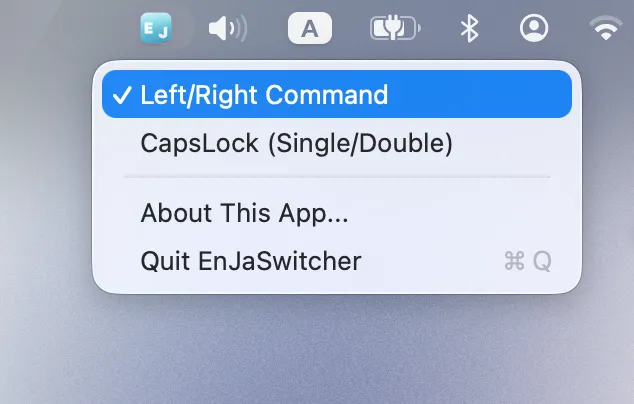
🎯 No guessing
Left ⌘ = Eisuu (English) / Right ⌘ = Kana (Japanese).
CapsLock once = Eisuu / twice = Kana.
⚡ Ready in seconds
Just grant permissions.
Pick your method from the menu bar and start typing.
🛡️ Works with the latest macOS
Built on macOS standard APIs only.
Stable and resilient to OS updates.
🖱️ Also: Reverse Mouse Scroll
macOS applies "Natural Scrolling" to both trackpad and mouse at once — there is no way to set them separately. Toggle Reverse Mouse Scroll in the menu bar to reverse only mouse wheel scrolling, while leaving trackpad as-is. Use natural scrolling on trackpad and traditional scrolling on mouse, or vice versa.
Installation
-
Step 1: Download
Click the download button above, or grab the latest EnJaSwitcher.app.zip from the GitHub Releases page.
-
Step 2: Move to Applications
Drag and drop EnJaSwitcher.app into your /Applications folder.
-
Step 3: Launch & Bypass Gatekeeper
Double-click EnJaSwitcher.app. Since this app is not notarized by Apple, macOS Gatekeeper will show a warning. Go to System Settings > Privacy & Security and click "Open Anyway". This is also required when updating to a new version. For detailed steps, see the GitHub README.
-
Step 4: Grant Permissions
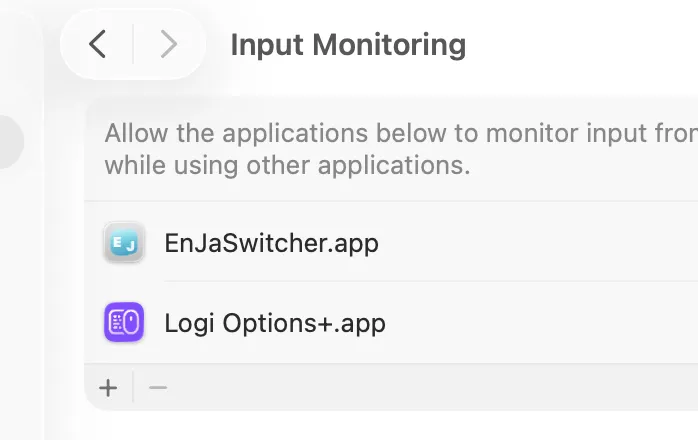
On first launch, macOS will prompt you for permissions. Open "System Settings > Privacy & Security" and enable EnJaSwitcher in the following two sections.
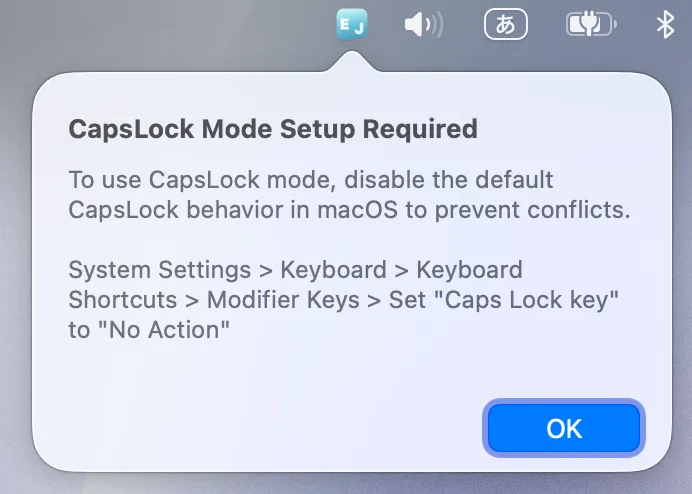
CapsLock Mode Setup
If you use CapsLock mode, you need to disable the default Caps Lock behavior in macOS to prevent conflicts.
- Open "System Settings"
- Go to "Keyboard" > "Keyboard Shortcuts" > "Modifier Keys"
- Change "Caps Lock" to "No Action"
Even with "No Action" set, EnJaSwitcher uses its own hardware-level monitoring, so CapsLock switching will still work correctly.
FAQ
- Q. Switching doesn't work
- A. Check that EnJaSwitcher is enabled in both "Accessibility" and "Input Monitoring" under "System Settings > Privacy & Security". If it's already enabled but not working, remove it with the minus button and re-add it with the plus button.
- Q. "Unidentified developer" or malware warning appears
- A. This appears because the app is not notarized by Apple (affects all Macs). After dismissing the warning, go to System Settings > Privacy & Security and click "Open Anyway". See the GitHub README for detailed steps.
- Q. How to launch at login
- A. From v1.3.0 onward, auto-start at login is enabled automatically the first time you launch the app — nothing for you to do. To turn it off (or back on), click the "E/J" icon in the menu bar and toggle "Launch at Login (Background)". You don't need to add EnJaSwitcher to "System Settings > General > Login Items (Open at Login)".
- Q. It shows as a black icon under "Allow in the Background" — is that safe?
- A. Yes, it's safe. The LaunchAgent launches the binary directly inside the .app bundle (not the .app itself), so macOS shows its default black "exec" icon. The app itself is properly signed with a self-signed certificate. Leave the toggle ON (turning it off will disable auto-start).
- Q. How to uninstall
- A. Delete EnJaSwitcher.app from your Applications folder. Then remove EnJaSwitcher from the "Accessibility" and "Input Monitoring" lists in "System Settings > Privacy & Security" to clean up permission entries.
- Q. How is this different from Karabiner-Elements?
- A. Karabiner-Elements is a powerful general-purpose key remapper, but it is complex to configure and requires kernel-level privileges. EnJaSwitcher is a lightweight menu bar app focused solely on macOS Eisuu/Kana (input source) switching, uses only standard macOS APIs, and only needs Accessibility and Input Monitoring permissions. It is a good alternative if you don't want to install Karabiner-Elements just for this.
- Q. How is this different from ei-kana?
- A. Like ei-kana, EnJaSwitcher maps Left Command to Eisuu (English) and Right Command to Kana (Japanese). In addition, EnJaSwitcher supports CapsLock mode, mouse side-button and scroll-wheel switching, and Reverse Mouse Scroll. It is also distributed with a developer-signed binary so permissions are less likely to be reset on recent macOS versions.
- Q. My Mac Eisuu/Kana (input source) switching stopped working
- A. Right after a macOS update, Input Monitoring and Accessibility permissions can be silently invalidated. In System Settings > Privacy & Security, remove EnJaSwitcher (minus button) and re-add it (plus button). If it still doesn't work, restart your Mac to refresh the permission cache.
- Q. How can I switch macOS input method (IME) with the Command key?
- A. Set EnJaSwitcher to Command mode from the menu bar. Pressing Left Command alone switches to Eisuu (English), pressing Right Command alone switches to Kana (Japanese). Normal shortcuts like Command+C are unaffected. This works on both JIS and US keyboards — you get instant IME switching without reaching for a dedicated key.